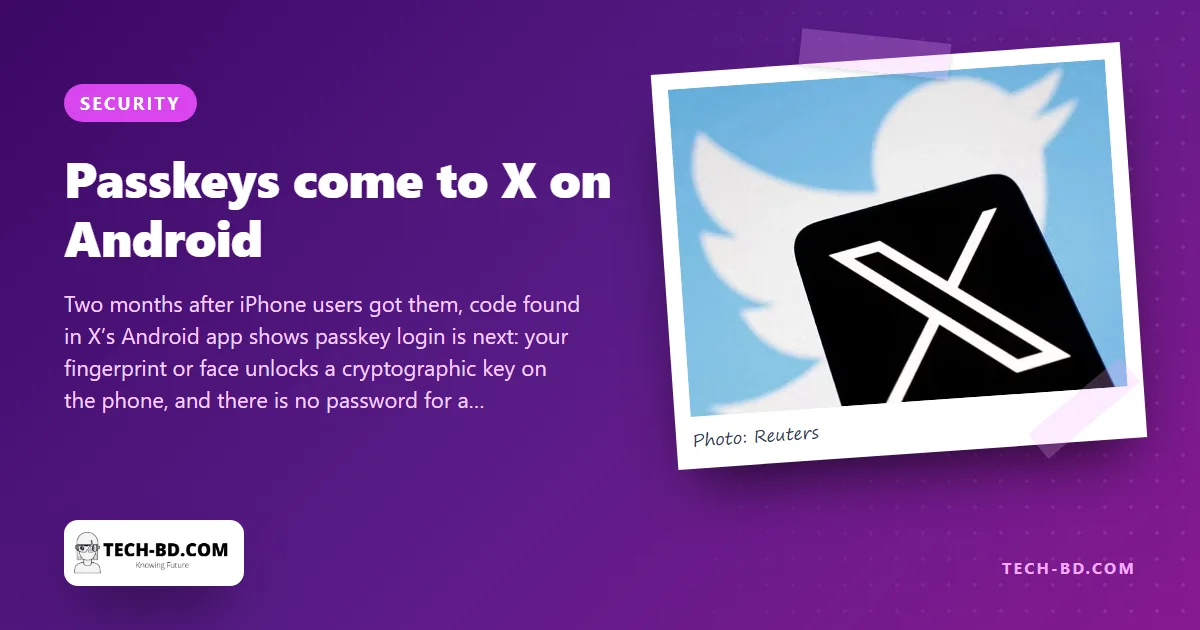
In January X let iPhone and iPad users sign in with a passkey instead of a password. Android users are next: the reverse-engineer who posts as AssembleDebug found the code for passkey login in the latest version of X’s Android app, and although the company has announced nothing, the feature appears ready to switch on. It is a small change to one app and a useful moment to explain the thing that is quietly replacing passwords everywhere.
What a passkey is
A passkey is a pair of cryptographic keys made for one website or app. The public half lives on the service’s server; the private half lives on your phone, protected by whatever unlocks it — fingerprint, face or screen-lock PIN. When you sign in, the service sends a challenge, your phone signs it with the private key after you touch the sensor, and the service checks the signature with the public one. Nothing that could be reused ever leaves the device. Your fingerprint is not sent to X; it only unlocks the key locally. Through Google’s or Apple’s cloud, the passkey syncs to your other devices, so a new phone works without re-enrolling.
Why it is better than a password plus a code
Passwords can be guessed, leaked and reused. One-time codes by SMS can be intercepted or, more often, simply read out by the victim to a caller pretending to be the bank — the commonest fraud in Bangladesh. A passkey defeats both: there is no secret to guess or leak, and it only works on the exact domain it was created for, so a look-alike phishing site gets nothing even if you try to log in to it. That is why Google, Apple, Microsoft, PayPal, Amazon and now X are moving to them.
How to start using them
- Make sure your phone has a screen lock and, ideally, a fingerprint or face unlock.
- In a supporting service’s security settings — Google Account, Apple ID, Microsoft, PayPal, X on iOS today and Android soon — choose Create a passkey and confirm with your fingerprint.
- Keep the password as a fallback until every device you use supports passkeys; the two coexist.
Local services have not caught up: no Bangladeshi bank or mobile-money app offers passkeys yet, and their OTP-by-SMS logins remain the weak point that fraudsters target. When bKash or a bank does add them, this is the feature to switch on first.
The catch nobody mentions: where the passkey lives
A passkey is a private key held by your device, and that raises the question every explanation skips — what happens to it when the device does not survive the year.
In practice the key is not really on the phone, it is in a keychain that syncs: Google Password Manager on Android, iCloud Keychain on iPhone. Get a new phone, sign in to the same Google or Apple account, and your passkeys arrive with your contacts. That is what makes them usable, and it also means your passkeys are only as safe as the platform account holding them — which should therefore have its own strong password and its own second factor.
Two consequences follow. Switching between ecosystems does not carry passkeys across, so moving from Android to iPhone means re-registering them. And if you use a borrowed or shared phone to sign in, do not create a passkey on it: you would be leaving a key to your account in somebody else’s keychain.
Keep the second factor anyway
A passkey replaces the password, not the recovery path. Leave your authenticator app and your recovery email in place — the day you are signing in from a computer in a cyber café with no access to your own phone, the passkey is the thing you will not have.
Source: Gadgets 360, via Prothom Alo.